Run the Fee Schedule Batch
Quick answer
- Run Academic Management ▸ Periodic tasks ▸ Generate sale order batch processing, set dates, posting option, fee and charge interval, and template, then click OK.
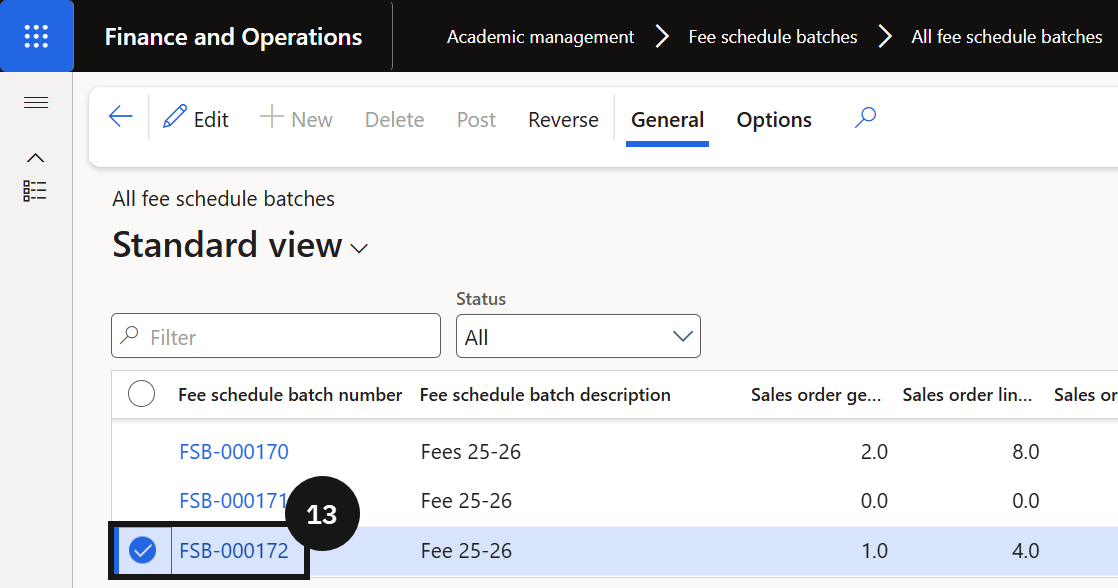
- Review the resulting batch in Fee schedule batches ▸ All fee schedule batches.
- Before running, confirm every student has an academic enrolment record with the correct fee and charge interval, and that at least one active fee schedule template exists.
With student data confirmed and fee schedule templates in place, run the fee generation batch to create sales orders across the student cohort. Configure the run by setting dates, posting option, fee interval, and template, then filter for the relevant students.
Note: Before running this batch, confirm that each student has an academic enrolment record with the correct fee and charge interval, and that at least one active fee schedule template exists for the target academic year. The fee and charge interval is the key field linking students, templates, and the batch job.
Open Generate sale order batch processing
From the FNO dashboard, open Modules ▸ Academic Management, expand Periodic tasks, and click Generate sale order batch processing.
Set the batch parameters
Complete the following:
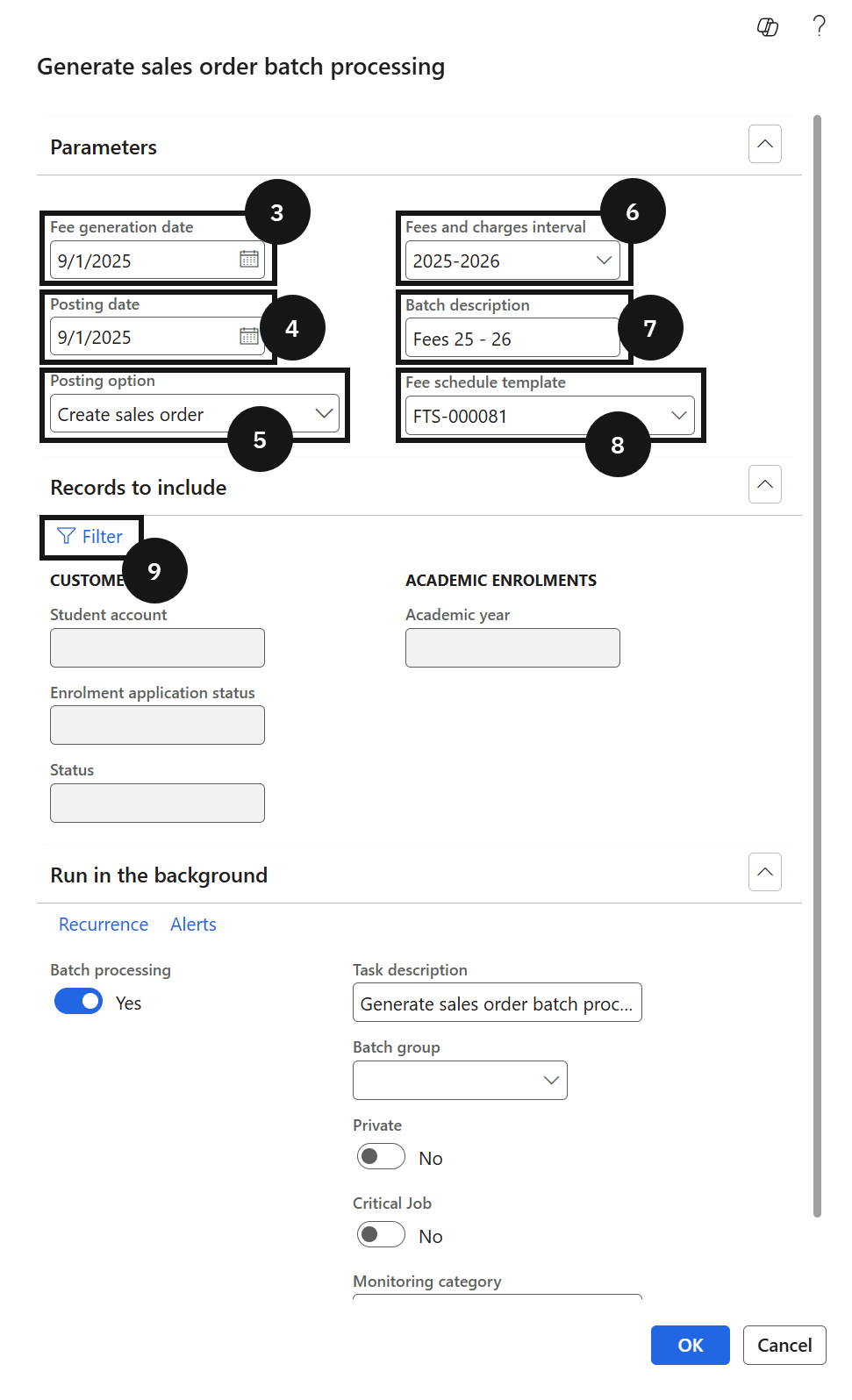
- Fee generation date (③) — set to the start date of the academic year or the start date of the fee charge interval.
- Posting date (④) — required only if using Post invoice automatically; leave blank to create open sales orders for manual review.
- Posting option (⑤) — select Create sale orders to generate open orders for review, or Post invoice automatically to create and post invoices in a single step.
- Fee and charge interval (⑥) — select the interval to filter which students are included.
- Batch description (⑦) — enter a description.
- Fee schedule template number (⑧) — select a specific template, or leave blank to include all active templates.
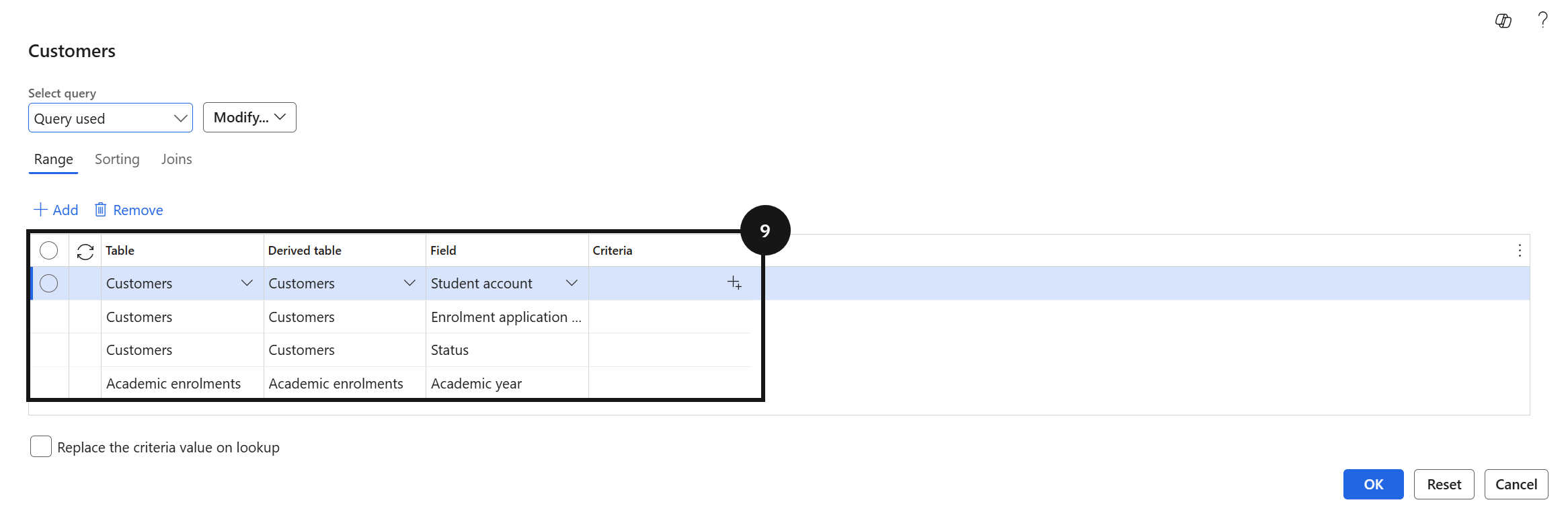
In Records to include, add filters for a specific cohort, academic year, or student if needed (⑨). Leave blank to run across all eligible students.
Submit and review
Click OK to submit the batch job. Once complete, navigate to Fee schedule batches ▸ All fee schedule batches and click the batch number to review all generated sales orders (⑬).
The system reuses an existing deposit sales order if the student has already paid an enrolment deposit; otherwise it creates a new sales order.