Post Sale Order Invoices by Term
Quick answer
- Run Academic Management ▸ Periodic tasks ▸ Post sale order invoice, set the posting date, enable Split invoice by item, filter Period name for the term, and submit as a batch job.
- Invoices are not posted in a single run — each term is posted separately. Repeat for each term.
Invoices are not posted in a single run. Each term is posted separately by scheduling a batch job filtered to the relevant period name. If the school has three terms, three separate batch jobs are required.
Run Post sale order invoice
From the FNO dashboard, open Modules ▸ Academic Management, expand Periodic tasks, and click Post sale order invoice.
Set parameters and filter by term
Complete the following:
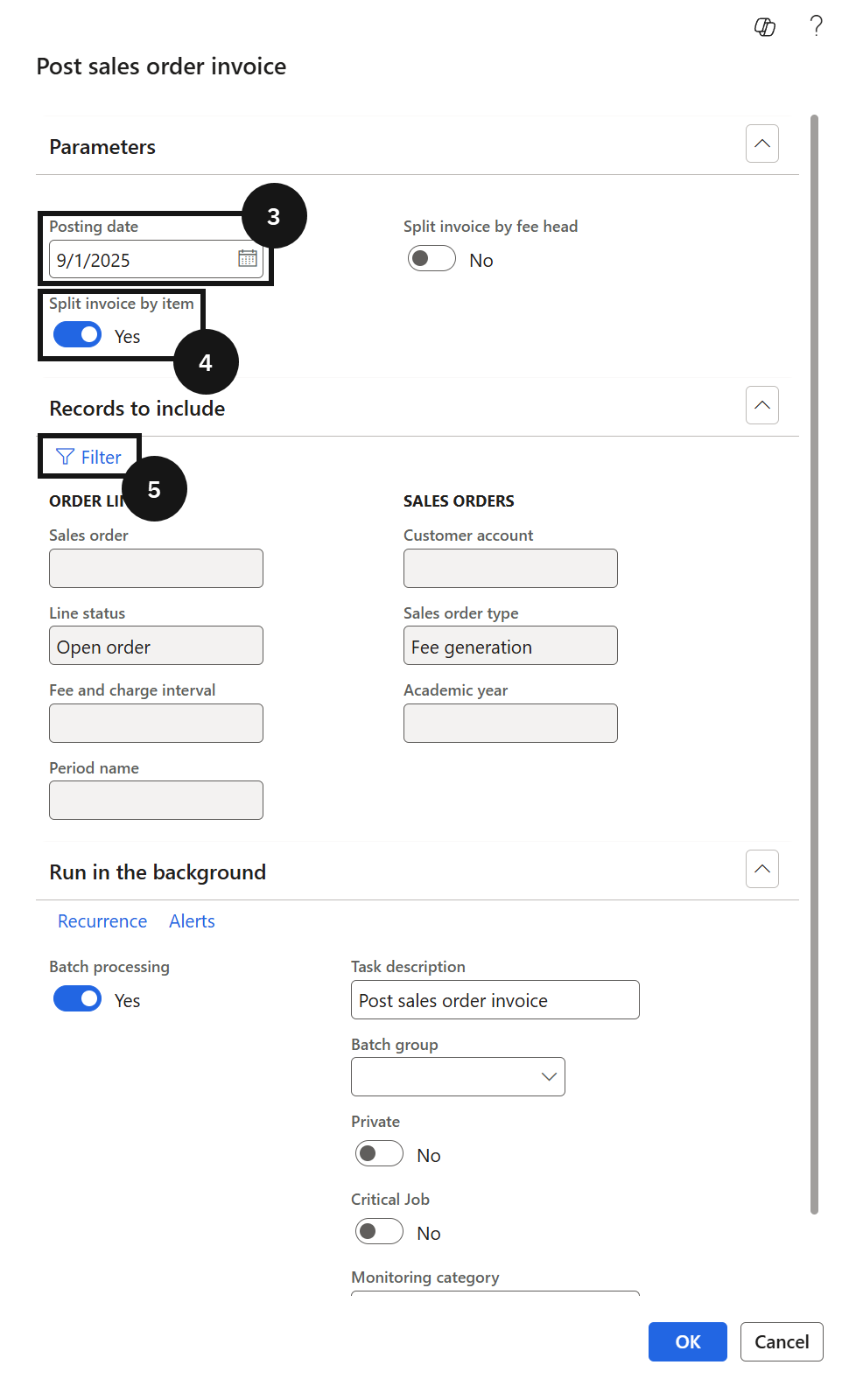
- Posting date (③) — set the posting date for the term being posted.
- Split invoice by item (④) — enable this option. The system generates a separate invoice for each line item within the term.
In Records to include, set the Period name filter (⑤) to the term being posted (e.g., Term 1). The system posts only sales order lines where the period name matches.
Expand Run in the background and enable Batch processing.
Submit and verify
Click OK to submit. Once complete, open Fee schedule batches ▸ All fee schedule batches, open the relevant batch, and confirm the status of each posted line has changed to Invoice. Repeat the process for each remaining term.