Generate Flat Fee for Book Sales
Quick answer
- Verify book fee prices in Product information management ▸ Released products ▸ Sell ▸ Sales price, create a fee schedule template for book sales in All fee schedules, then run Generate sales order batch processing filtering by the student account.
- Before starting, ensure a book fee item has already been created.
Before starting, ensure a book fee item has already been created.
Verify book fee prices
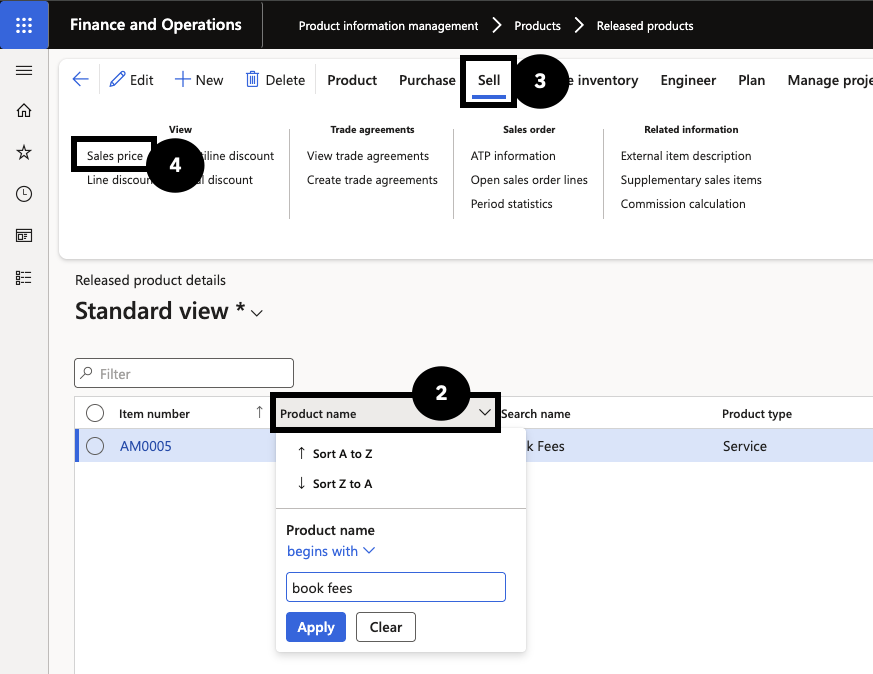
From the FNO dashboard, navigate to Modules ▸ Product information management ▸ Products ▸ Released products. Filter the Product name column for Book fees (②). Click Sell on the Action Pane (③) and under View select Sales price (④). Confirm prices are set up for all required grades, curricula, and streams.
Create a fee schedule template for book sales
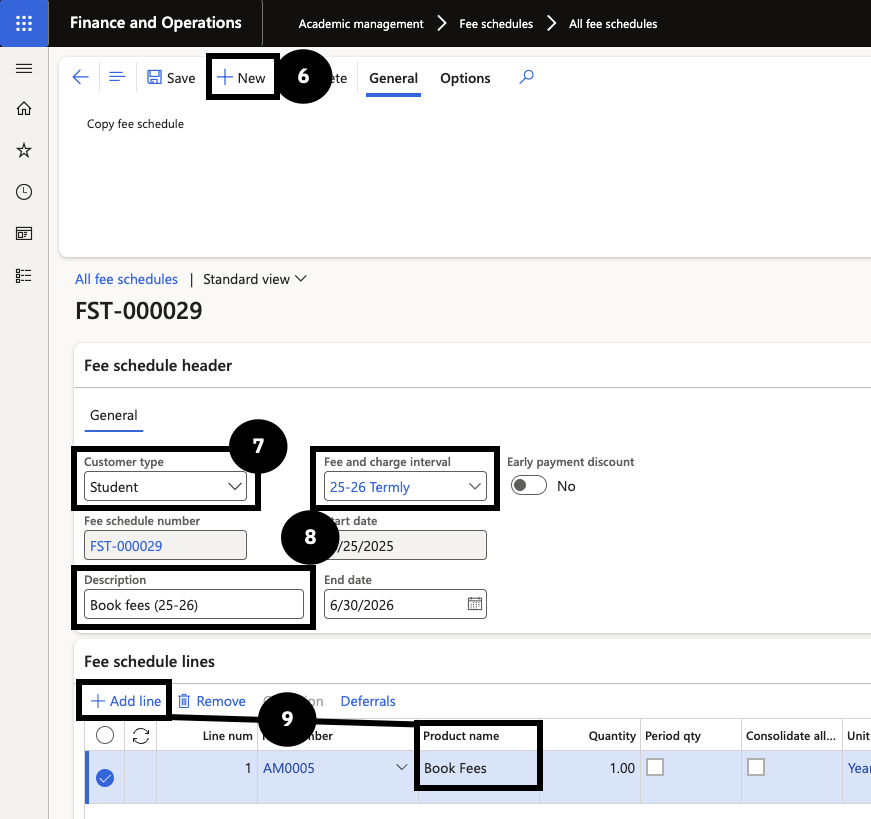
Navigate to Modules ▸ Academic management ▸ Fee schedules ▸ All fee schedules and click New (⑥). Set Customer type to Student (⑦), enter a Description, and select a Fee and charge interval (⑧). In Fee schedule lines, click + Add line and choose the book fee item (⑨). Click Save and close.
Generate the sales order
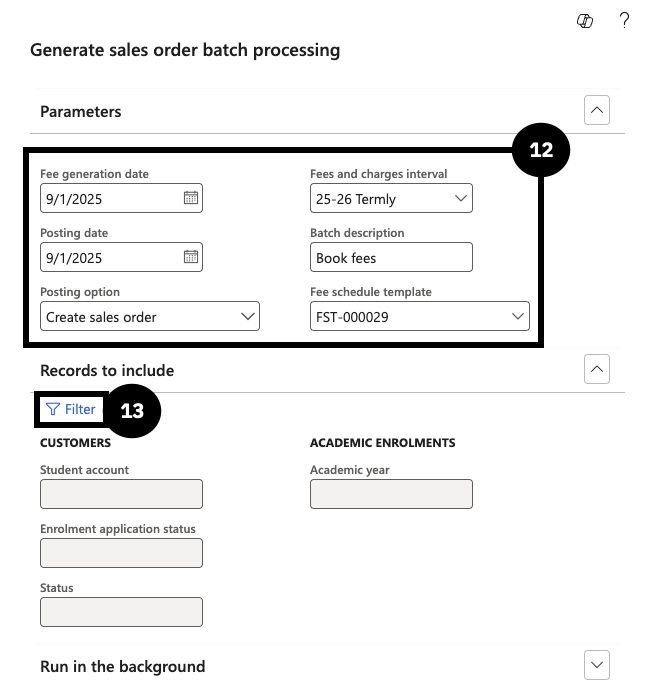
Navigate to Modules ▸ Academic management ▸ Periodic tasks ▸ Generate sales order batch processing. Set a Fee generation date within the fee and charge interval, select the Fee and charge interval, set Posting option to Create sales order, enter a Batch description, and select the book sales fee schedule template (⑫). In Records to include, filter by the Student account number (⑬). Click OK.
Send the proforma invoice
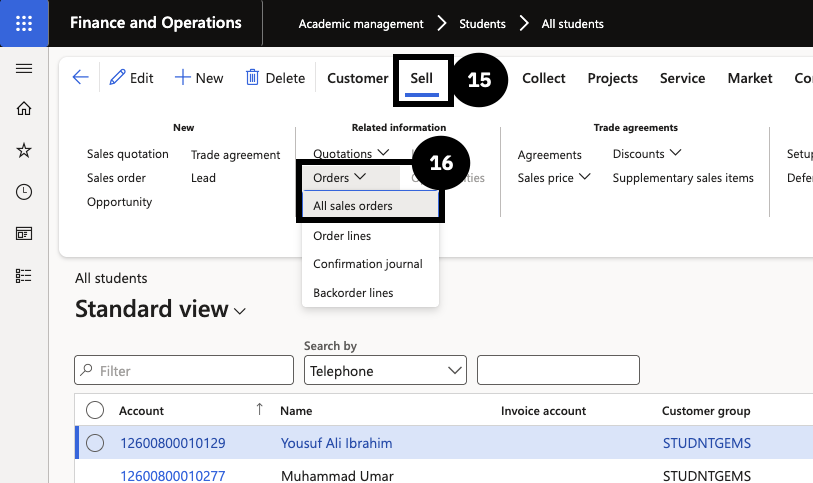
Return to Modules ▸ Academic management ▸ Students ▸ All students, open the student record, click Sell (⑮) ▸ Orders ▸ All sales orders (⑯), and select the generated sales order. Click Confirm sales order, enable Print confirmation and Use print management destination, then click OK to send the proforma invoice.