Generate an Advance Tax Invoice upon Request
Quick answer
- Open the student's sales order via All students ▸ Sell ▸ All sales orders, click Invoice ▸ Add prepayment invoice, select the Mark checkbox, set the Sales category, then Post.
- Used when a family requests a formal tax invoice ahead of settlement — for example, for employer reimbursement or government funding.
The advance tax invoice feature generates a tax invoice against a fee payer's open proforma invoice before full payment is received. Typically used when a family requests a formal tax invoice ahead of settlement — for employer reimbursement or government funding.
Find the student's sales order
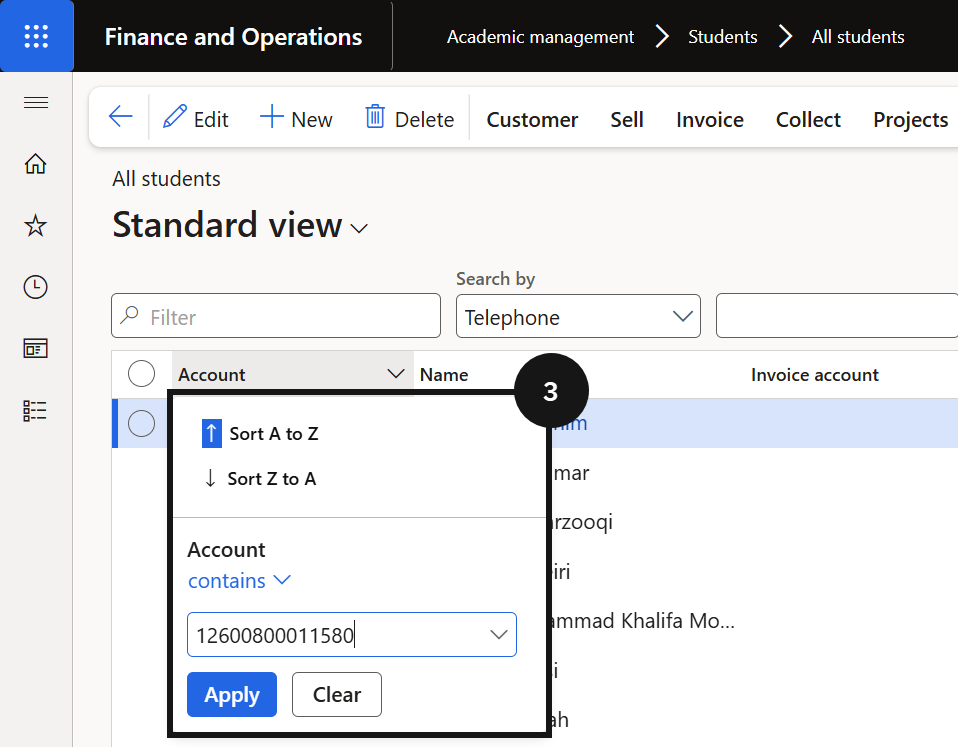
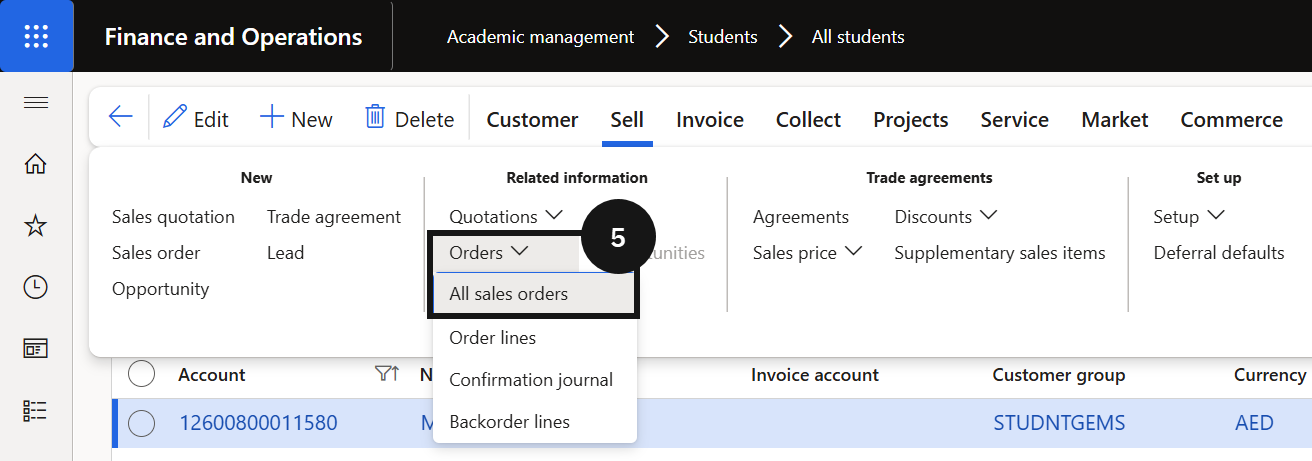
From the FNO dashboard, navigate to Modules ▸ Academic Management ▸ Students ▸ All students. Filter for the student using the Account column with the contains operator (③). Click Sell on the Action Pane, then click Orders ▸ All sales orders to locate the open proforma invoice (⑤).
Add the prepayment invoice
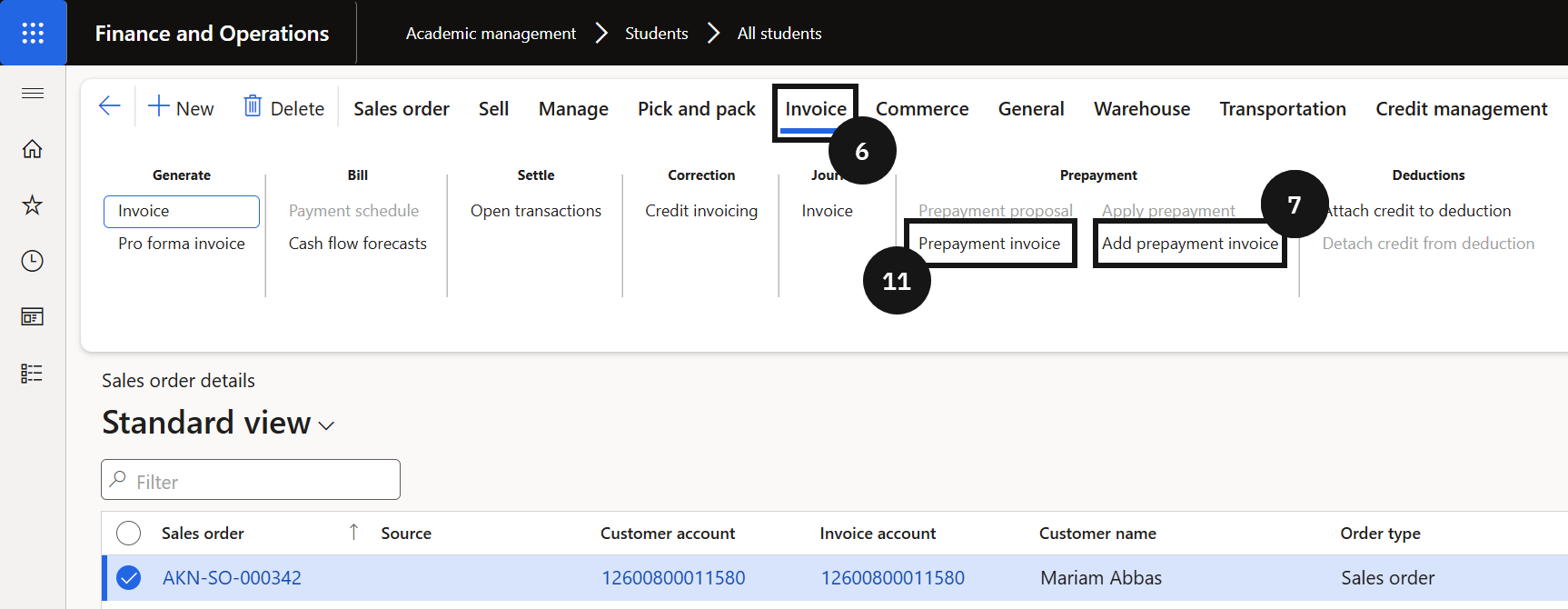
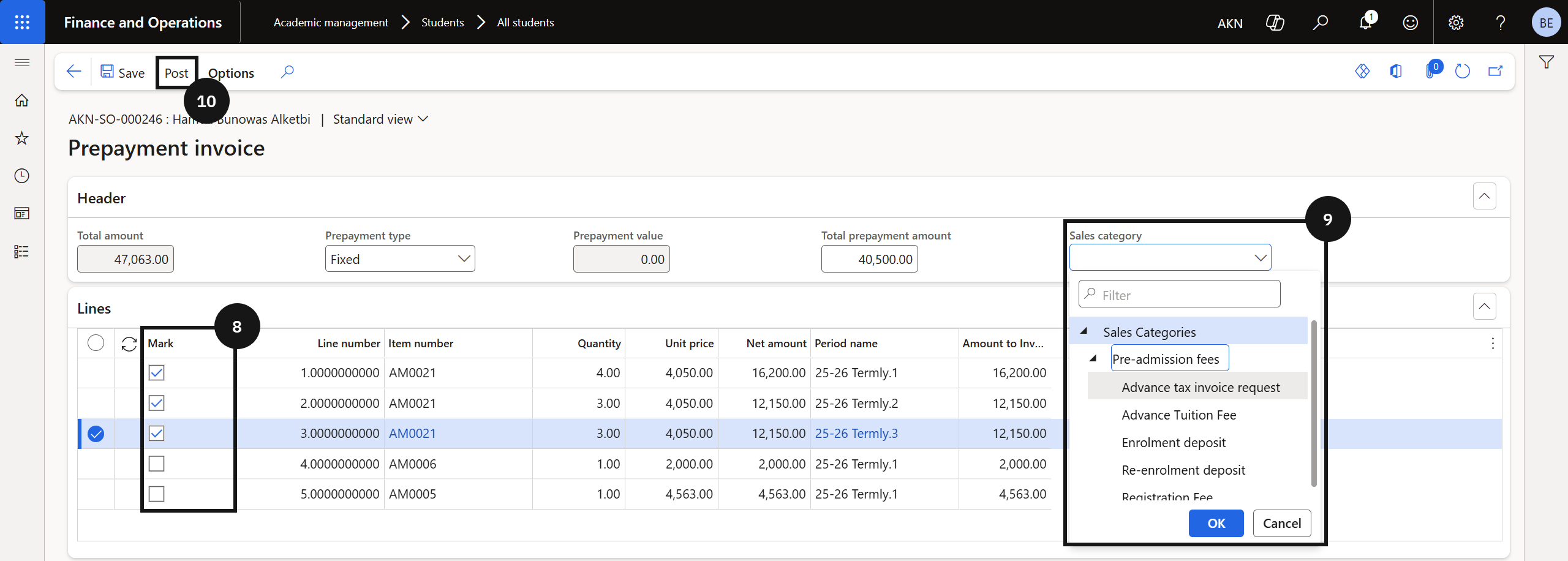
Click Invoice on the Action Pane (⑥), then click Add prepayment invoice (⑦). Select the Mark checkbox to confirm the selection (⑧). If invoicing for a partial amount only, enter the amount in the Amount to invoice field before proceeding. In the Sales category field, enter or select Advance tax invoice request (⑨). Click Post (⑩).
Print the invoice
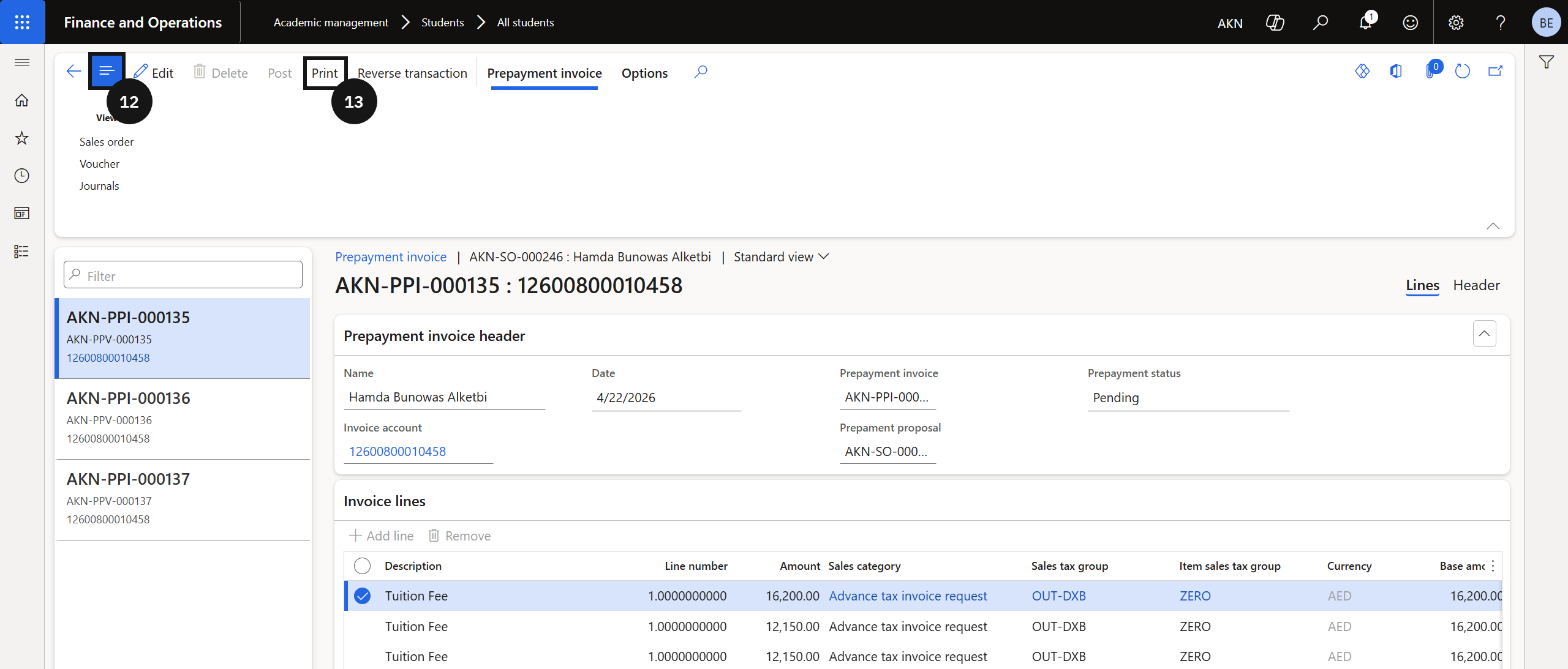
Click Prepayment invoice (⑪), click Show or hide controls if necessary (⑫), then click Print (⑬).