View your team's attendance
Quick answer
- In ESS, open the Attendance tile and go to the Team attendance tab.
- Switch between Line and Hierarchy to change which employees you see.
- Change the week or widen the date range to see a longer period.
If people report to you, the attendance area has a team tab alongside your own. It shows the same attendance information for each of them, so you can see who worked what without going into D365.
Open team attendance
In ESS, open the Attendance tile and go to the Team attendance tab.
Choose line or hierarchy
There are two ways people can report to you, and two views to match.
Line shows your direct reports — the people whose line manager you are.
Hierarchy shows the people assigned to you through the attendance hierarchy. This is how a designated attendance manager sees the people they approve attendance for, even where those people report to somebody else on the line.
The two lists are usually different. Toggle between them to see both.
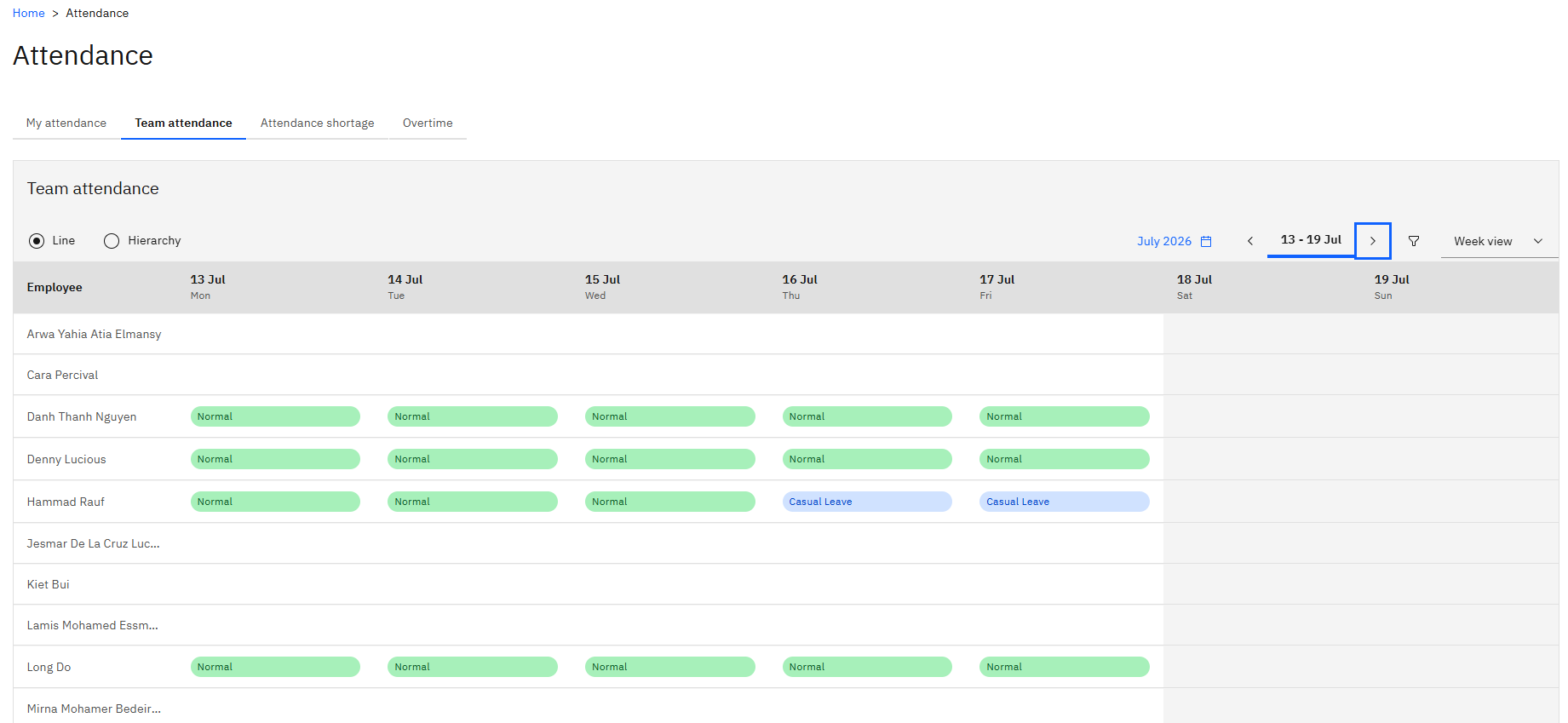
Change the period
Move between weeks with the week selector, or widen the date range to see several weeks at once.
Refresh if data looks missing
Attendance data refreshes on an interval of about five minutes rather than instantly, so a punch or a correction made moments ago may not be there yet. Refresh and check again before raising it.
From here, you can also see your team's shortages and approve their overtime — see Review attendance shortages for your team and Approve your team's overtime.