View your attendance
Quick answer
- In ESS, scroll down the home page and click the Attendance tile.
- Open My attendance and use the week view, or switch to the multi-week overview.
- The calendar shows your scheduled hours, booked hours, absence hours, breaks and approved leave.
Your attendance in ESS is a calendar of the days you have worked, built from the clock-in and clock-out records from the attendance system. Use it to check what has been recorded for you before it goes anywhere else.
Open attendance
In ESS, scroll down the home page and click the Attendance tile.
Open My attendance
The first tab is My attendance, showing your own record.
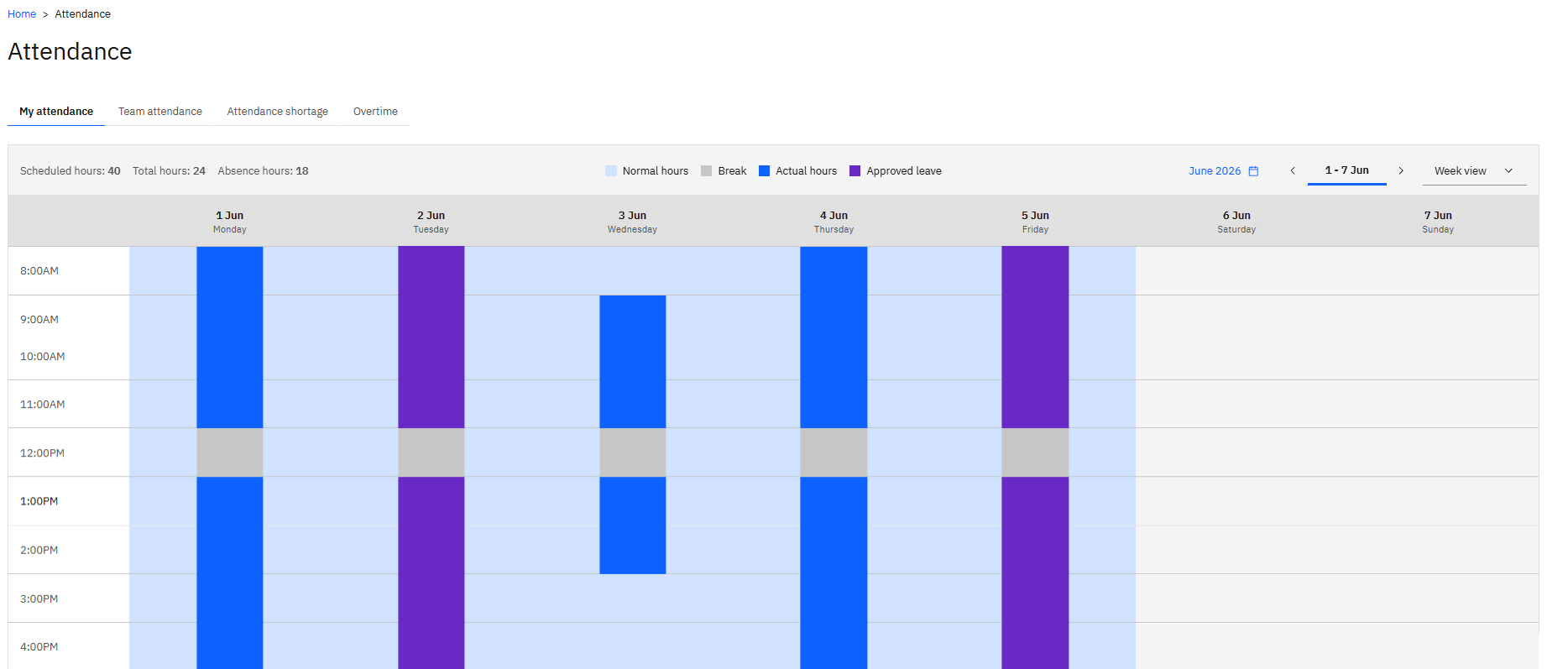
Choose a week
The default is a week view. Use the week selector to move to another week.
Switch to the overview
Switch to the multi-week view to see a longer period at a glance rather than one week at a time.
Read the calendar
The legend at the top of the calendar tells you what each marking means. Across a month, you can see your scheduled hours, how many you have booked, and your absence hours, along with breaks from your working calendar and the actual hours you worked.
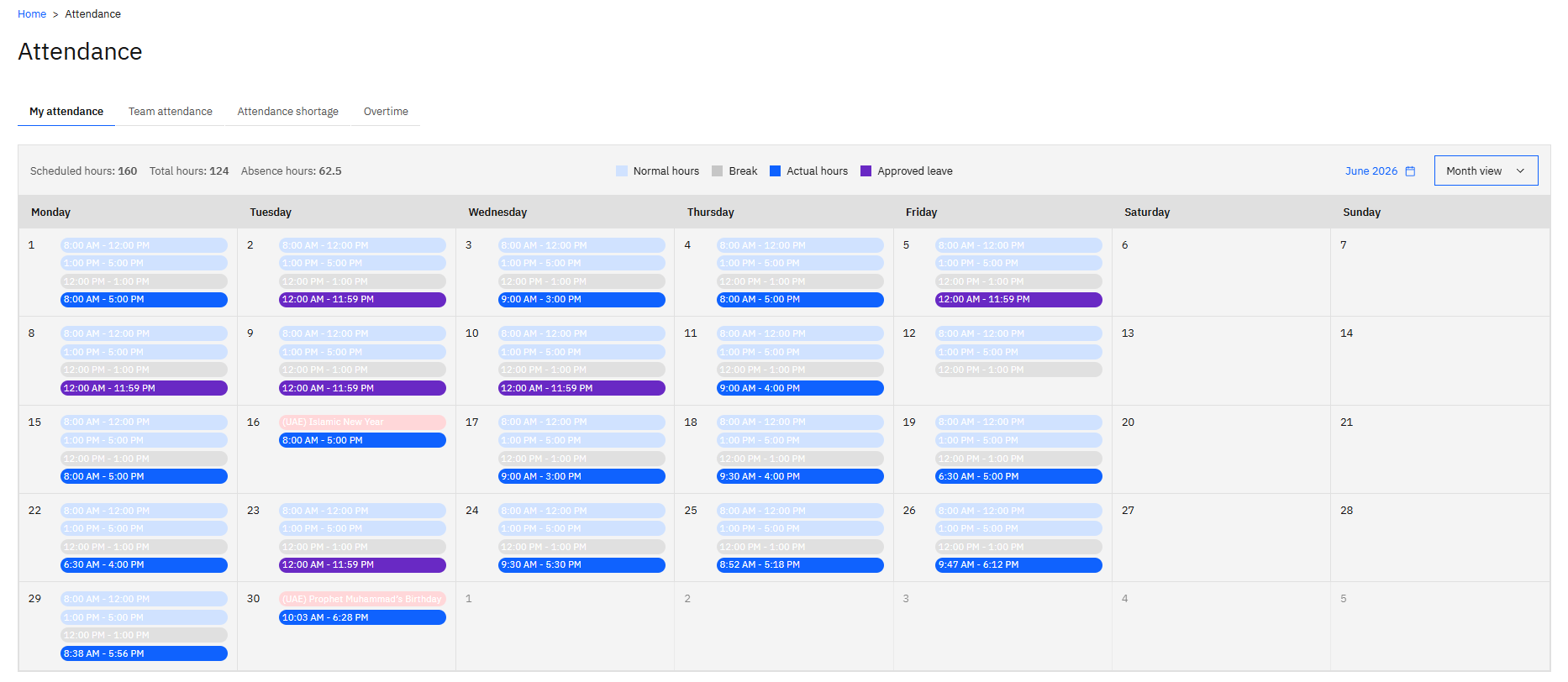
Approved leave and public holidays appear on the calendar too — an Islamic New Year holiday, for example, comes through from the calendar and shows on the day.
If something recorded against you is wrong — a day the machine didn't register, a late arrival or an early exit that was agreed — raise it with HR. Corrections are made in D365 against your attendance log, and appear here once the system next refreshes, which is at about five-minute intervals rather than instantly.