Review attendance shortages for your team
Quick answer
- In ESS, open the Attendance tile and go to the Attendance shortage tab.
- Switch between Line and Hierarchy to change which employees you see.
- Click into a day to see how many minutes short an employee was.
A shortage is a day when somebody worked fewer minutes than their calendar schedule. The attendance shortage tab collects these for your team so you can see who is short, on which days, and by how much.
Open the attendance shortage tab
In ESS, open the Attendance tile and go to the Attendance shortage tab.
Choose Line or Hierarchy
As with team attendance, Line shows your direct reports and Hierarchy shows the people assigned to you through the attendance hierarchy. Check both if you approve attendance for people outside your line.
View the shortages
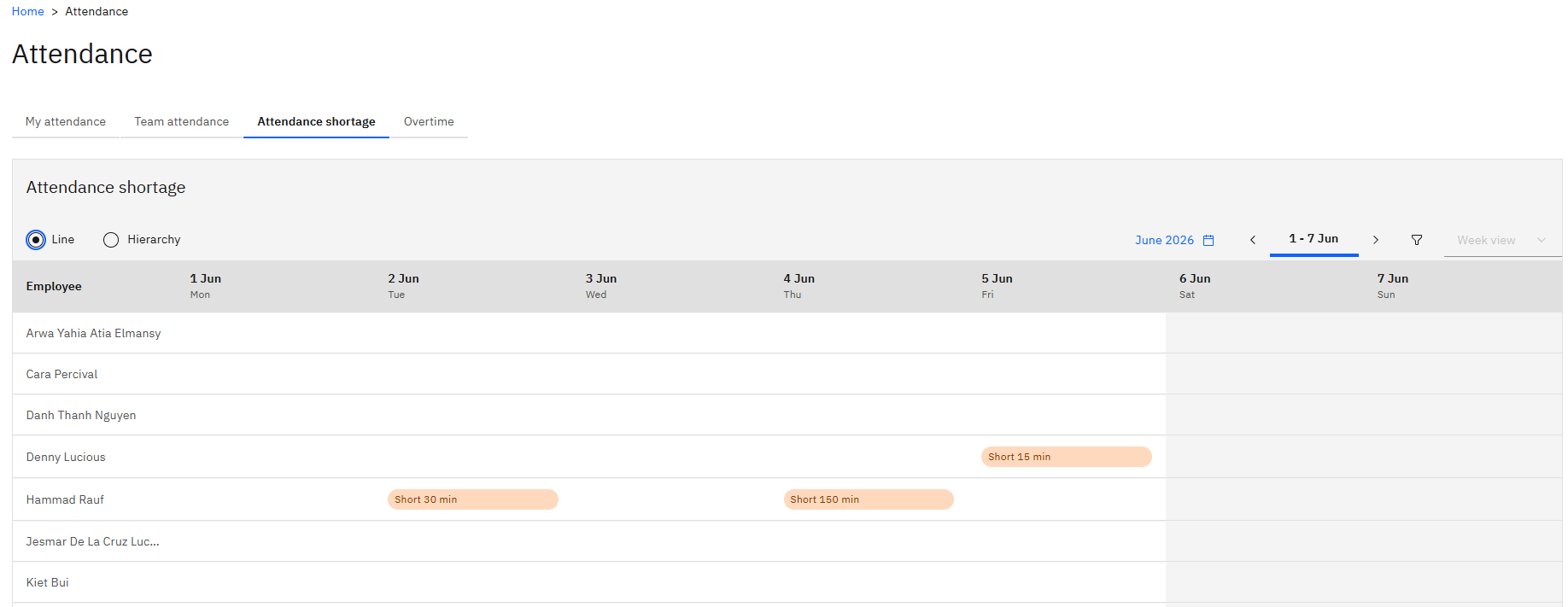
In the event of a shortage, the recorded shortage—for example, 30 minutes short on 2 June- will be listed next to the Employee name.
Act on it
Where the shortage is genuine, take it up with the employee. If it is wrong—the biometric machine wasn't working, or there was an agreed late arrival or early exit, usually supported by an HR request—HR needs to correct it against the attendance log in D365, not in ESS. Once HR corrects it and the summary batch job runs again, the shortage clears from this view.