Approve your team's overtime
Quick answer
- In ESS, open the Attendance tile and go to the Overtime tab.
- Check the clock-in and clock-out times against each overtime entry.
- Click Approve on a line and confirm — the total approved minutes updates as you go.
Your team's overtime is raised for you to approve in ESS. Your approval is the first of three approvals — HR and finance approve after you in D365 — so nothing goes to payroll based on your approval alone.
Open the overtime tab
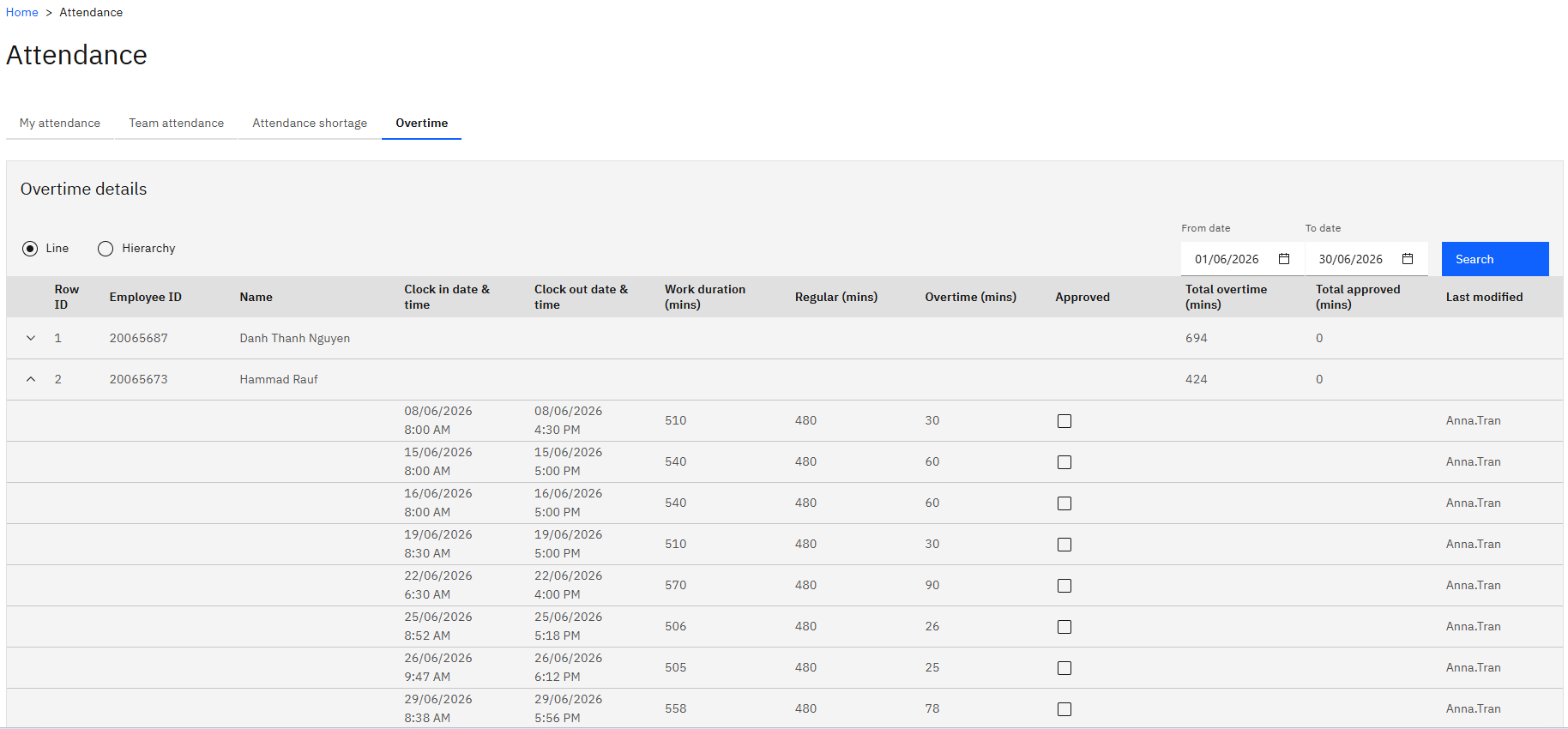
In ESS, open the Attendance tile and go to the Overtime tab.
Choose line or hierarchy
Line shows your direct reports, and Hierarchy shows the people assigned to you through the overtime hierarchy. Overtime approval often sits with a designated overtime manager rather than the line manager, so check the view that applies to you.
Check the entry
Each line shows the clock-in and clock-out dates and times behind the overtime, so you can see at a glance what hours were actually worked before you approve them.
Very short overruns won't be listed. HR sets a minimum number of minutes below which overtime isn't raised for approval.
Approve
Click Approve on the line.
Confirm
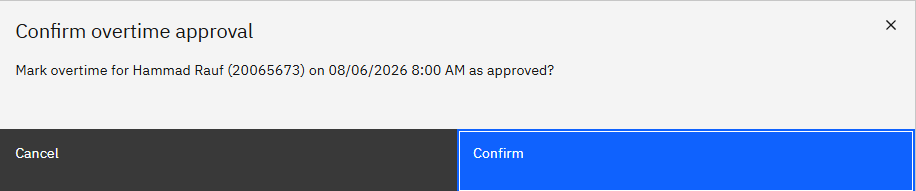
Confirm the action. Click Confirm.
Check the total
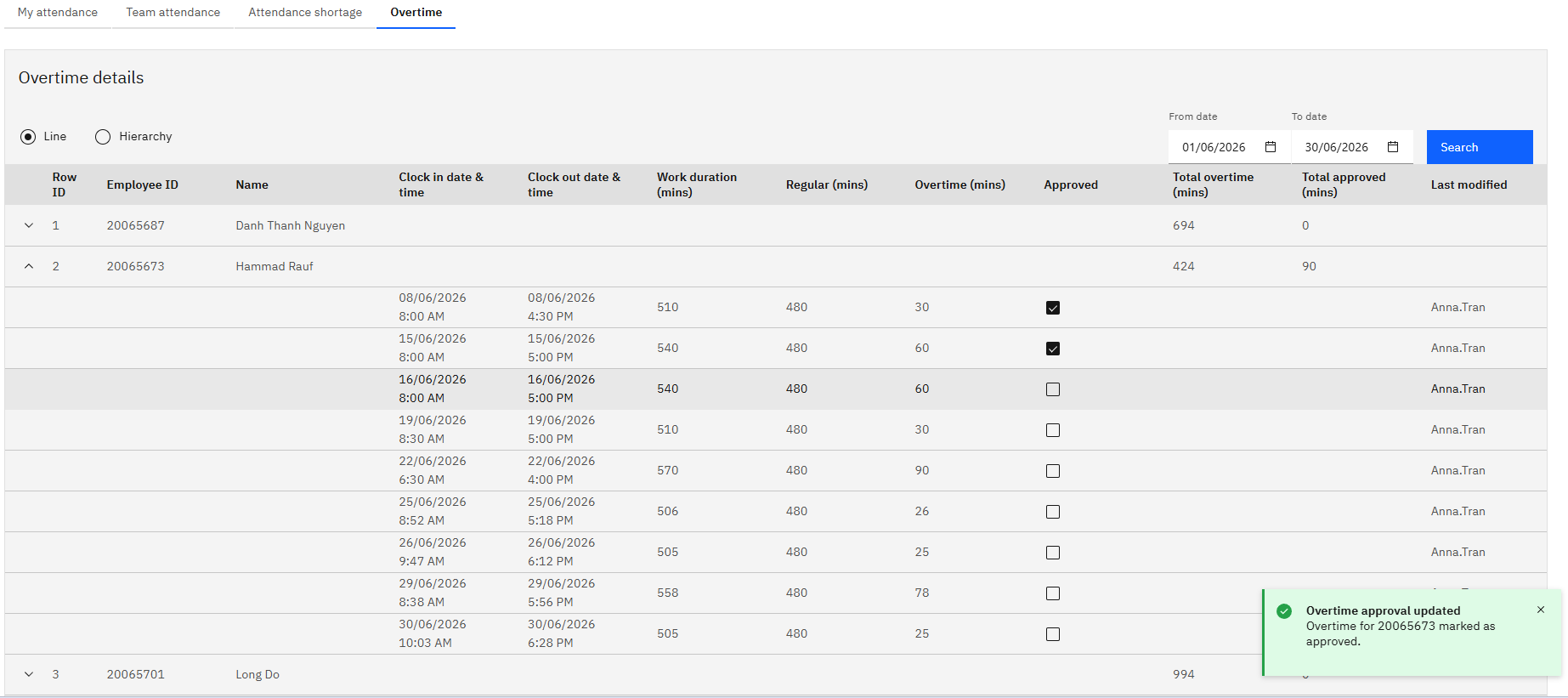
Approve the other entries you agree with. The Total approved minutes updates as you go, so you can see the total you are signing off rather than only the individual lines.
Your approval writes straight back to D365 — the overtime detail record there shows as approved as soon as you confirm. It then goes to HR and, after that, to finance before it is released for payroll processing.