Complete a probation review as a manager
Quick answer
- Go to Performance Management ▸ Team probations in ESS.
- Open the pending review and complete the competency ratings and comments.
- For Stage 2, set the Review Outcome, then click Submit.
When a team member is due for a probation review, the workflow routes it to you. You receive a notification, and the review appears in your ESS queue.
Open your probation review queue
From the ESS portal, go to Skills & performance ▸ Performance Management ▸ Team Probation Review Requests. Pending reviews are listed here. You can also find them in your Manager View or My Team section.
Open the review
Click on the review to open the full form. You will see the employee's name, the due date, and the review type (Stage 1 or Stage 2).

Complete the competency ratings
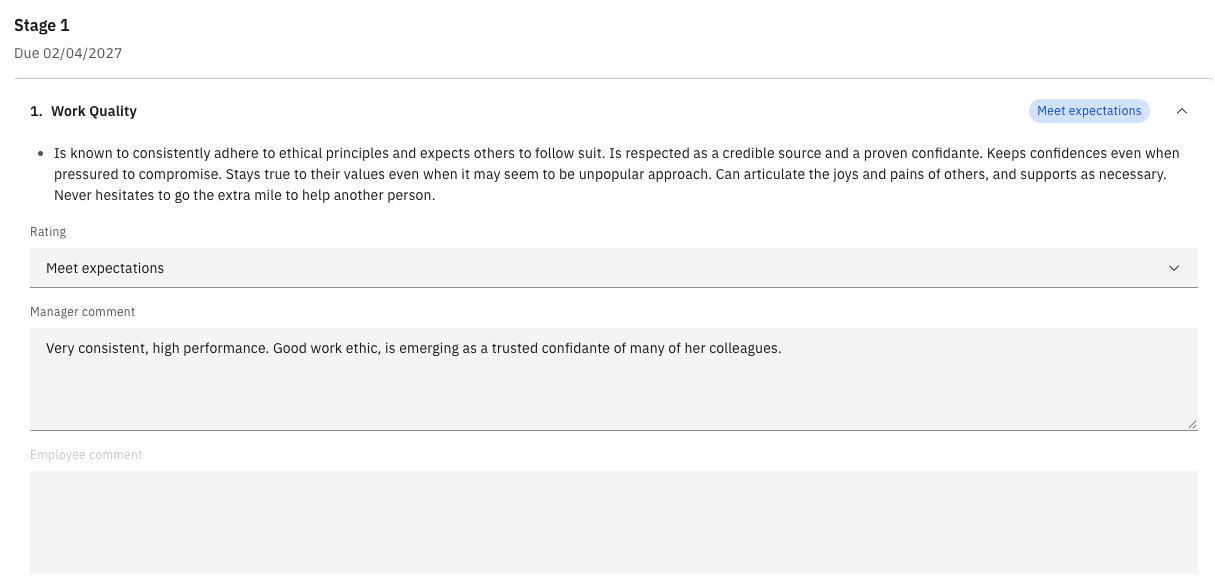
For each competency, select a rating from the dropdown (e.g., Meets Expectations, Concerns, Needs Improvement) and add comments in the Manager Comments field. The employee's comment field is read-only at this stage.
Add overall comments
Fill in the Overall Manager Comments field to summarise your overall assessment.
For Stage 2 reviews — set the Review Outcome
Stage 2 reviews include an additional field:
Outcome What happens next Meets Expectations The review is passed to the employee for their feedback, and HR is notified simultaneously Performance Concerns The review routes directly to HR only — the employee is not informed of the outcome at this stage Stage 2 forms also show Stage 1 comments alongside Stage 2 fields for each competency, so you can review the progression.
Submit
Click Submit to complete your review. A confirmation message confirms successful submission, and the review is removed from your queue.