Use the growth and performance matrix
Quick answer
- In ESS, open Growth and performance from the manager view, set your filters and click Search.
- Drag employees between boxes to change their position on the matrix, then save.
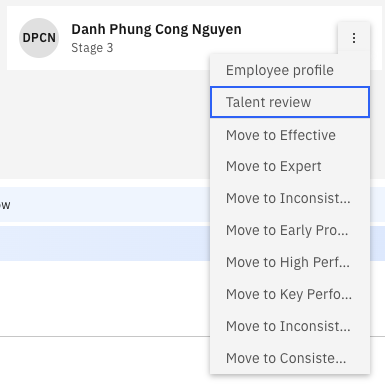
- Use the three dots next to an employee's name to open their profile and complete their talent review.
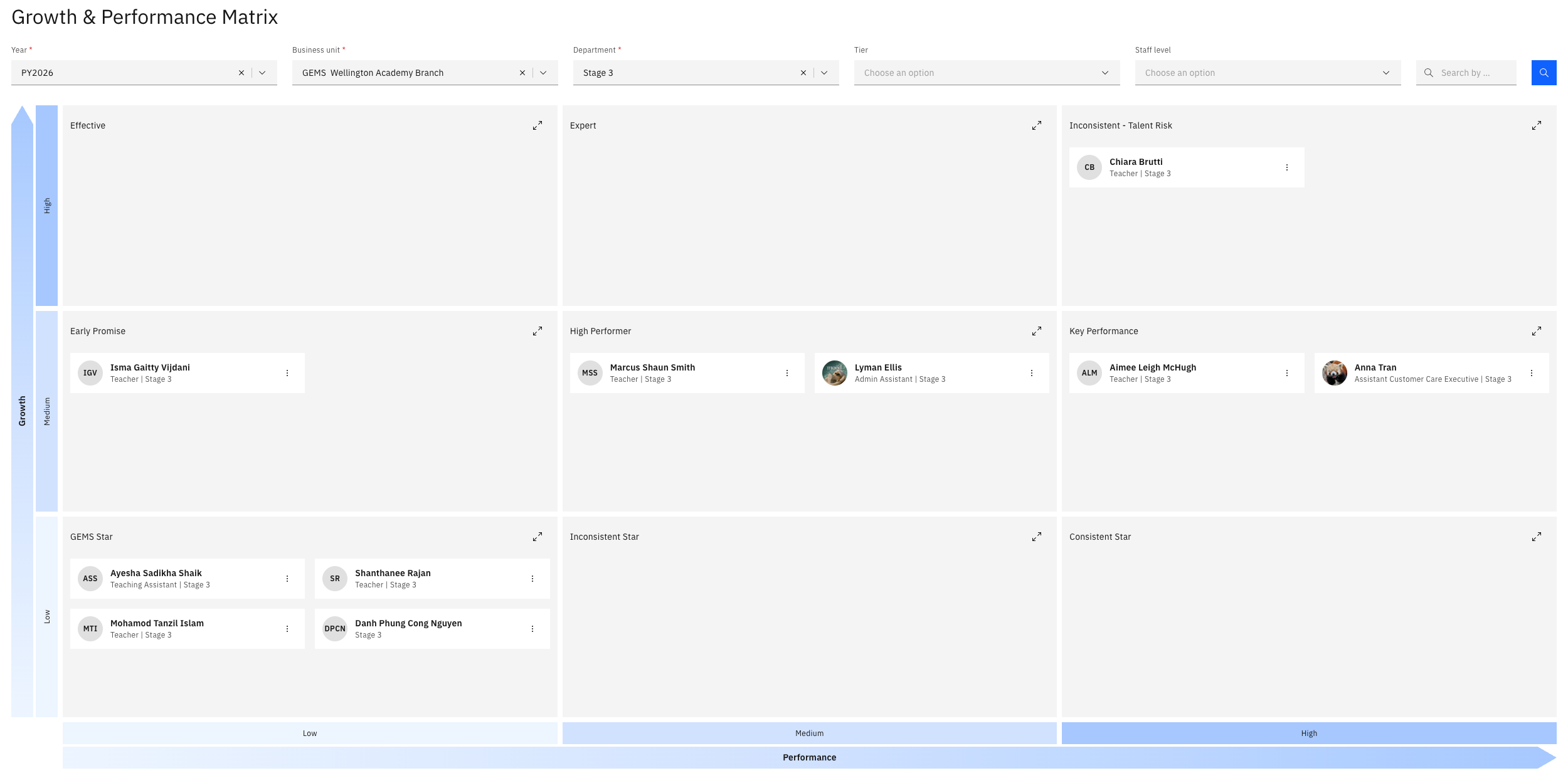
The growth and performance matrix places your employees on a grid — GEMS star, high performer, inconsistent, talent risk and the rest — based on their performance and growth. From here, you can move people between boxes and record their talent review.
This view is restricted. It is available to users with HR access and can be limited further to suit your organisation.
Open the matrix
In ESS, go to your manager view and open Growth and performance.
Filter to the employees you want
Set your filters and click Search:
Filter What it narrows to Year The performance year Business unit The company or entity Department The department or stage Start level The level to filter from Your employees are placed across the matrix according to their current position.
Move an employee
Drag an employee from one box to another to change their position — for example, from effective to high performer. You can move people one at a time or reposition several before saving.
Save your changes
Click Save. The positions update, and the new placement is written back to the employee's talent review record in D365.
The update isn't instant—allow a moment, and refresh if the move doesn't appear right away.
Open an employee's talent review
Click the three dots next to an employee and open their profile. You can view their profile information and performance rating, and open their talent review.
Complete the talent review
Record against the employee:
Field What to record Comments Your notes on the employee Risk of loss How likely they are to leave — for example, medium Impact of loss The effect if they did — for example, high Position Their placement — key performer, high potential, or neutral Identified successor Who would succeed them Employee readiness How long until that successor is ready — for example, two years There are other fields to complete. You can also change the employee's position here instead of dragging them on the matrix.
Add an attachment
In the File tab, attach a supporting file if you have one. Attachments are stored against the employee's talent review record in D365.
Submit
Click Submit. Everything you have recorded is saved to the employee's talent review and is visible to HR in D365 — see View talent review records in the HR guide.
What you record here feeds the talent comparison view, so completing it properly is what makes that view useful — see Compare talent profiles.