Submit your goal setting review
Quick answer
- In ESS, go to Skills and performance and click the Goal setting tile to access your goal-setting review.
- Set a weighting, comment and goal status against each goal — you can add or remove goals as you go.
- Record your career aspirations, mobility preferences and training needs, then submit. Your weightings must total exactly 100%.
Goal setting is the first stage of the performance year. HR releases the review to you with your goals already populated, and you complete it by setting how much each goal is worth, where it currently stands, and what you want from the year ahead.
Open your review
In ESS, go to Skills and performance and click the Goal setting tile to find your reviews. Your goal-setting review is listed with its due date.

The timeline at the top of the review shows all the stages of the year — goal setting, mid-year review and end-of-year review — with the current one highlighted and the others marked as not started.
Complete each goal
Your goals are already there, copied from the template HR set up. Against each one, enter:
- Weightage (%) — how much of your overall performance this goal represents
- Comments — what you plan to do, or where the goal currently stands
- Goal status — for example, On track
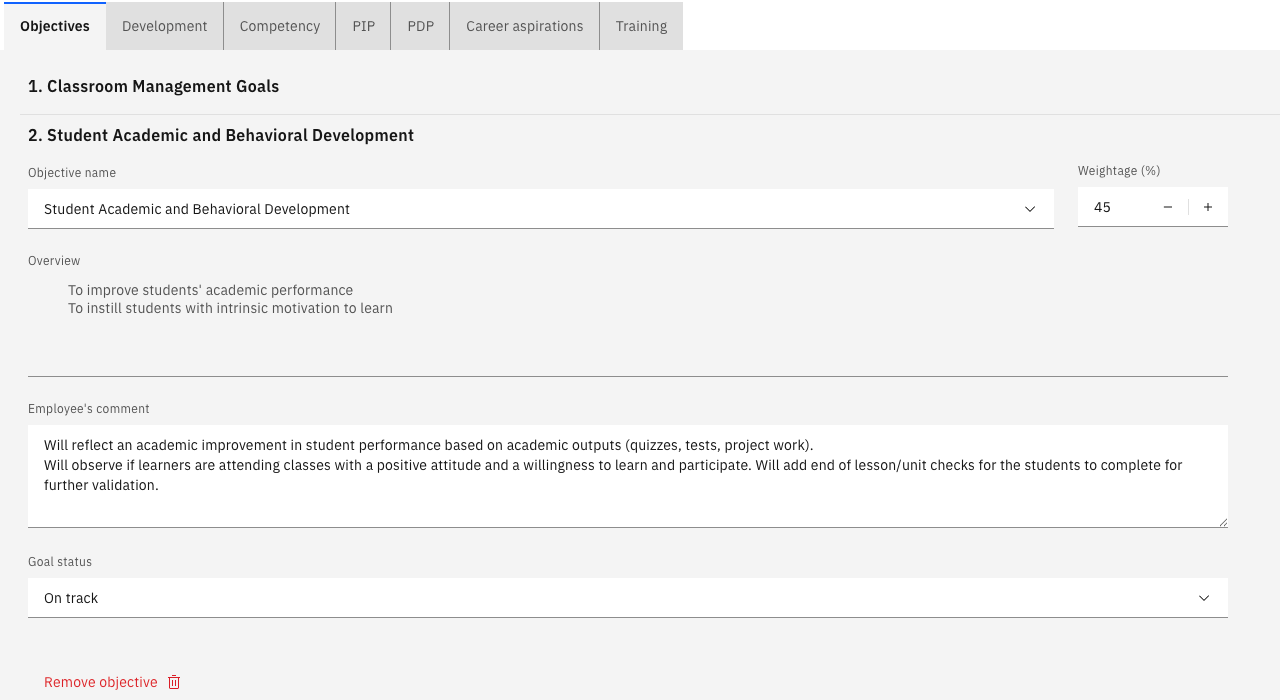
Click Next to move through your goals. Your review may include several types: objectives, competencies, and PIP or PDP goals, depending on what has been set up for you.
Add or remove a goal
Your review is not limited to what was released. Click Add new goal + at the bottom of the screen and select from the list to add one, or click Remove objective on a goal that no longer applies.
Record your career aspirations
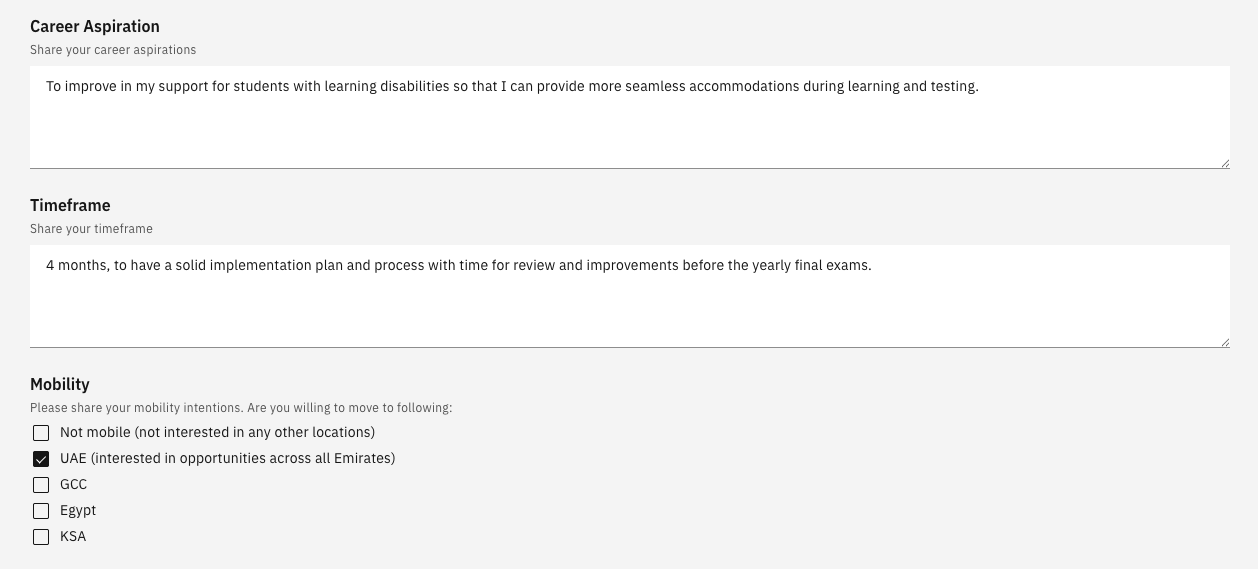
Enter where you would like your career to go — for example, moving into a leadership role — and the time frame you have in mind.
Select your Mobility preferences to indicate the locations you would consider. You can select more than one.
Record your training needs
Enter the training and development you need — for example, further leadership training. You can also select or clear a flag against your training needs; set it to reflect your position.
Check your weightings total 100%
Click Submit. If your weightings do not add up to 100%, an error appears at the bottom of the screen, and the review is not submitted — go back and adjust until the total is exactly 100.
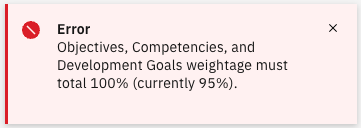
You cannot go over 100% either. The system blocks both an under-total and an over-total, so the weightings have to balance before the review will go.
Submit the review
With the weightings correct, click Submit again. The review moves to Ready for review and goes to your manager.
Your goal-setting review then disappears from your list once the batch process runs. Your manager's feedback comes back to you at the mid-year review — see Submit your mid-year review.