Calibrate performance ratings
Quick answer
- In ESS, open the HR view of calibration, filter to the year and group you are calibrating, and click Search.
- Compare the expected curve against the actual distribution, then drag employees between ratings to adjust.
- Save your changes with a comment, then click Release to manager to send the calibrated ratings back.
Calibration is where HR compares the ratings managers have submitted against the distribution the organisation expects, and adjusts where individuals sit relative to their peers. HR does this from the HR view in ESS.
This view is only available to users with HR rights. A manager without HR access sees only the manager view.
Open the HR view
In ESS, go to your manager view and click the HR view of calibration.
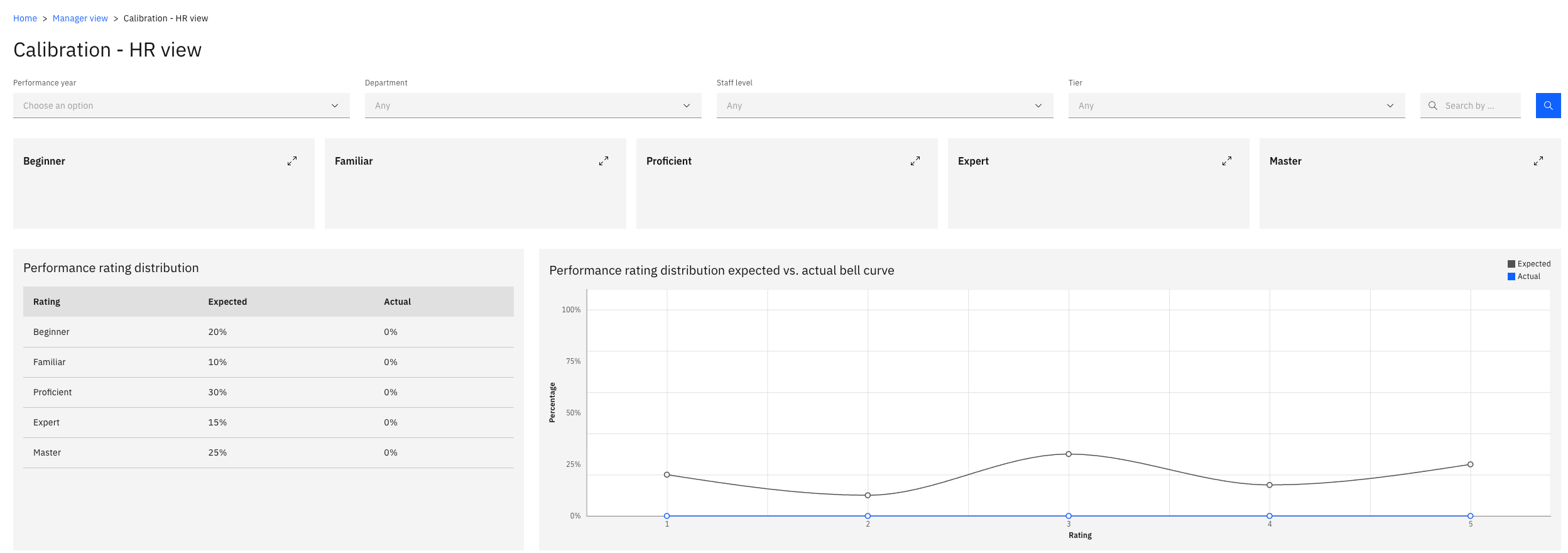
Filter to the group you are calibrating
Select the Performance year and narrow to the group you want — by department, for example. Use other filters if you need a tighter group. Click the Search icon.
Read the expected against actual curve
The chart at the bottom shows the Expected distribution against the Actual one. Expected comes from the calibration framework set up against the performance year in D365; actual is where your employees currently sit.

A band showing 30% against an expected 20% is over-represented, and an empty band is under-represented. The colour coding shows what each employee was rated against where they have ended up.
Where the calibrated rating and the provisional rating match, no change has been made to that employee — they are sitting at the rating their manager gave them.
Move an employee to a different rating
Drag an employee from one rating to another. Their Calibrated rating updates as you drop them, while the provisional rating stays as a record of what the manager submitted.
You can move several people before saving. The curve does not recalculate as you drag — it updates when you save.
Save with a comment
Click Save. You are prompted to add a comment for each employee you moved—for example, that the employee has been exceptional compared with their peers.
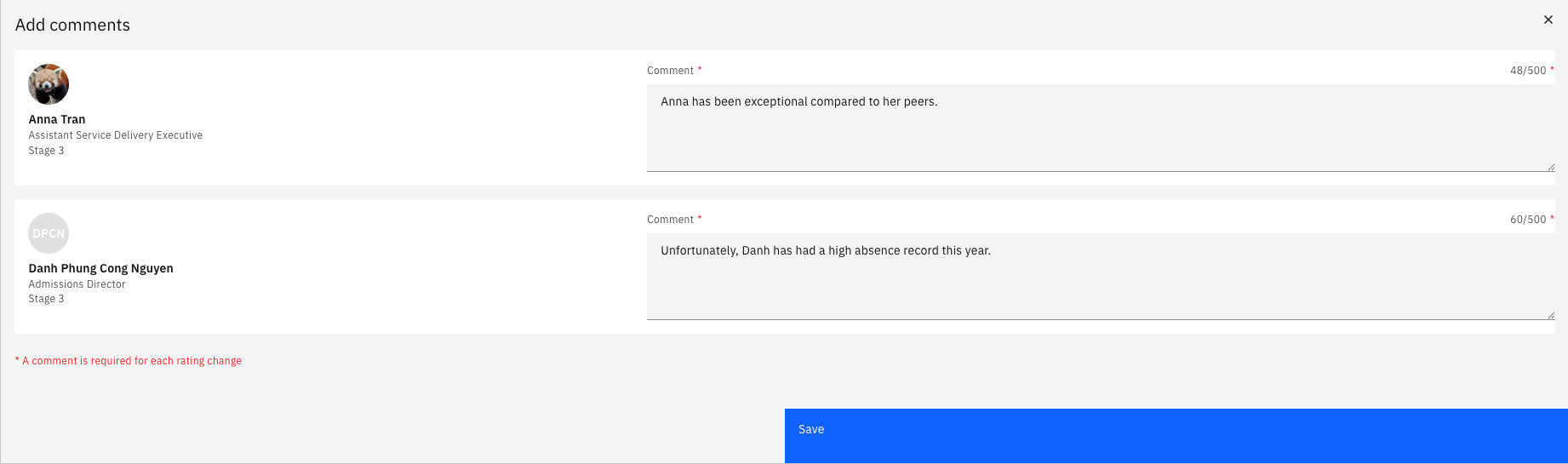
The comment is written back to the employee's record in D365, so record something that explains the decision. If you move several people, you are prompted for each one in turn.
Check the recalculated curve
Once saved, the actual distribution redraws against the expected curve so you can see the effect of your changes and keep adjusting until the distribution is where you want it.

Release to the managers
When the distribution is agreed, click Release to manager. The calibrated ratings go to each employee's manager, who discusses them before publishing to the employee.
The release is recorded against each record in the calibration inquiry in D365 — see Monitor the calibration inquiry in the HR guide.